Metrc Package Mapping US Only
Link each DabDash product and variation to its Metrc package label so sales and reconciliation report correctly.
ทำไมการจับคู่ถึงสำคัญ
Metrc ติดตามสต็อกด้วยป้ายแพ็กเกจ DabDash ติดตามสต็อกด้วยสินค้าและรูปแบบสินค้า การจับคู่เชื่อมทั้งสองเข้าด้วยกัน เมื่อสินค้าถูกจับคู่กับแพ็กเกจแล้ว ทุกการขายจะรายงานไปยังแพ็กเกจ Metrc ที่ถูกต้อง และการกระทบยอดตอนกลางคืนจะเทียบสองระบบได้
จับคู่สินค้าครั้งเดียวก็พอ หลังจากนั้นการจับคู่จะถูกใช้ซ้ำทุกครั้งที่ขายสินค้านั้น คุณไม่ต้องเลือกแพ็กเกจอีก เว้นแต่สินค้าจะเปลี่ยน
คำแนะนำที่จับคู่ให้อัตโนมัติ
DabDash เทียบชื่อสินค้าของคุณกับชื่อสินค้าในแพ็กเกจ Metrc แล้วเติมคู่ที่มั่นใจให้ล่วงหน้า แถวที่มีคำแนะนำจะแสดงป้ายสีเขียว จับคู่ตามชื่อ แถวที่ยังไม่มั่นใจจะแสดงป้ายสีอำพัน ต้องเลือกเอง
ตรวจทุกคำแนะนำก่อนบันทึก การจับคู่อัตโนมัติเป็นจุดเริ่มต้น ไม่ใช่คำรับประกัน ถ้าคู่ไหนดูไม่ถูก ให้เปลี่ยนจากตัวเลือกแพ็กเกจข้างแถวนั้น
สินค้าแบบน้ำหนักกับรูปแบบแบบชิ้น
หน้านี้แบ่งรายการที่ยังไม่ได้จับคู่ออกเป็นสองส่วน ตามวิธีที่ DabDash ติดตามสต็อก:
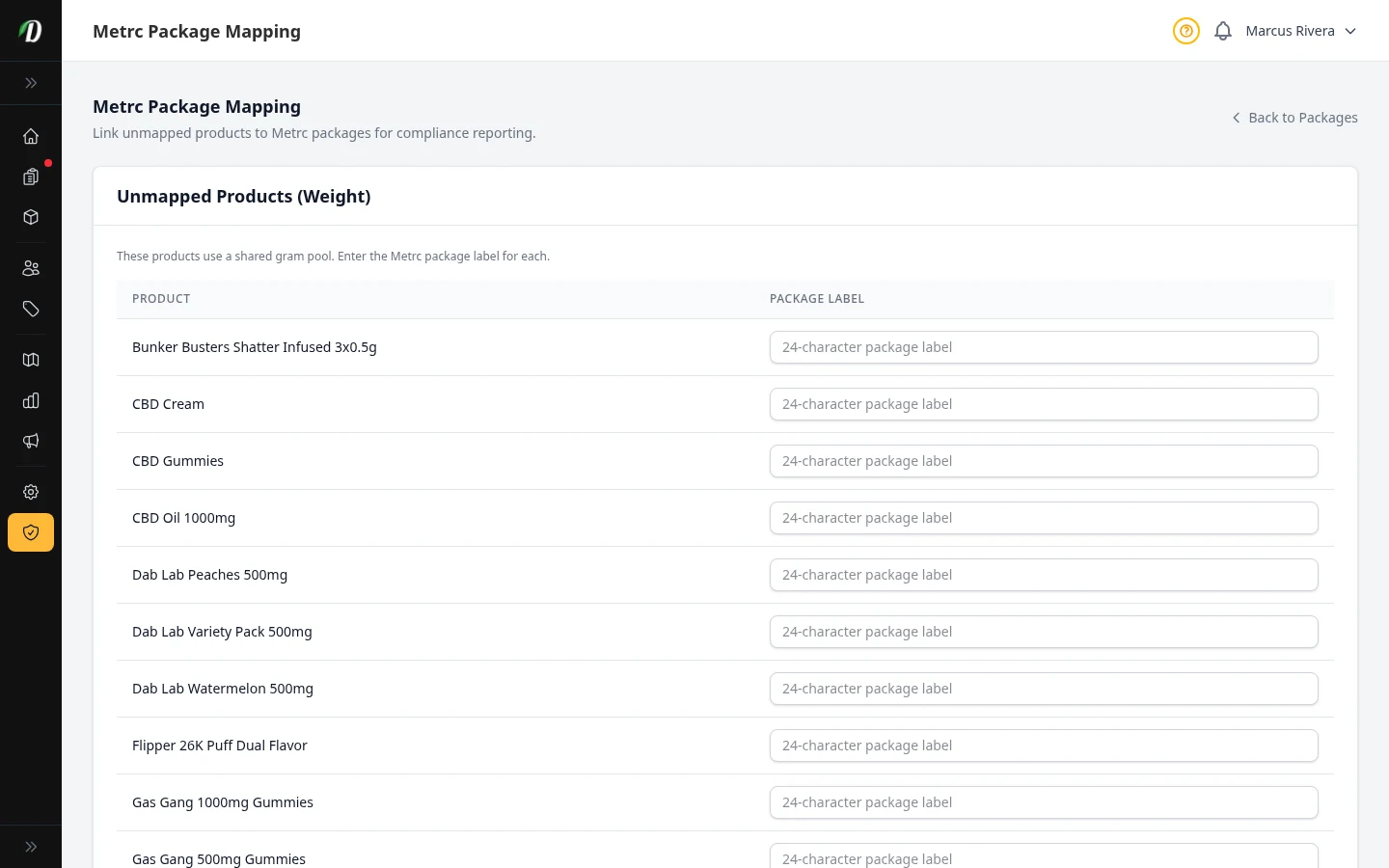
- สินค้าที่ยังไม่ได้จับคู่ (น้ำหนัก)
- สินค้าในตระกูลน้ำหนัก (ตามน้ำหนัก และรูปแบบ × น้ำหนัก) ใช้กองกรัมเดียวกันทั้งสินค้า คุณจับคู่ทั้งสินค้ากับแพ็กเกจ Metrc ใบเดียว
- รูปแบบที่ยังไม่ได้จับคู่ (ชิ้น)
- สินค้าในตระกูลชิ้น (แบบง่าย ตามชิ้น รูปแบบ × ชิ้น) ติดตามสต็อกทีละรูปแบบ แต่ละรูปแบบมีการจับคู่แพ็กเกจ Metrc ของตัวเอง
ตัวเลือกแพ็กเกจของแต่ละแถวแสดงเฉพาะแพ็กเกจที่หน่วยวัดของ Metrc ตรงกับหน่วยฐานของสินค้าหรือรูปแบบนั้น คุณจึงจับคู่สินค้าแบบกรัมกับแพ็กเกจที่นับเป็นชิ้นไม่ได้
บันทึกการจับคู่
เลือกแพ็กเกจให้ทุกแถวที่ต้องการจับคู่ แล้วคลิก บันทึกการจับคู่ ไม่ต้องจับคู่ให้ครบในครั้งเดียว บันทึกส่วนที่ยืนยันแล้วค่อยกลับมาทำที่เหลือ สินค้าและรูปแบบจะหายจากหน้านี้เมื่อจับคู่แล้ว
อยากดูว่าซิงค์อะไรมาแล้วก่อนจับคู่ เปิด หน้าแพ็กเกจ ก่อน
เคล็ดลับ: ถ้าสินค้าที่คุณคาดว่าจะเห็นไม่ได้อยู่ในรายการ แปลว่าจับคู่ไปแล้ว ถ้าต้องเปลี่ยนแพ็กเกจที่ชี้ไป ให้ยกเลิกการจับคู่ใน Metrc โดยตรง