Tracking Your Delivery
How the DabDash delivery tracking link works — the live status timeline, your driver, the estimated arrival, and the map when your store enables it.
Overview
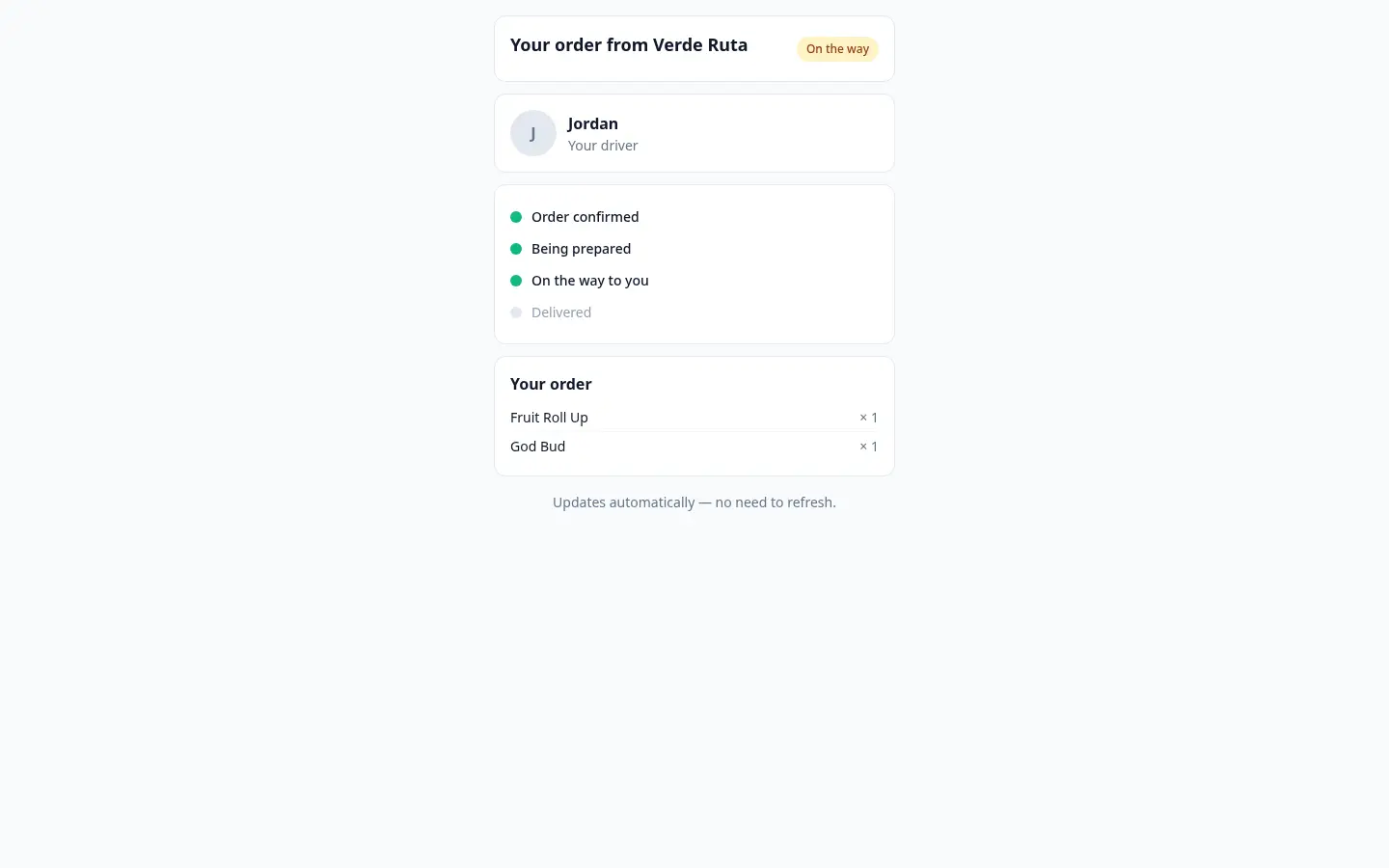
When your order is out for delivery, the store can share a tracking link with you. Open it to follow your order in real time — you'll see where it is in the process, when it's expected, and the items you ordered, all on one page.
The page updates on its own as your order moves along, so you don't need to refresh it. Keep it open and watch the status change as your delivery gets closer.
The link is private to your order and is meant just for you. It stops working about a day after your order is delivered, so it's a temporary window into that one delivery.
The Status Timeline
The heart of the page is a live timeline that lights up each step as your order progresses:
- Confirmed — the store has received and accepted your order.
- Being prepared — your order is being put together and packed.
- On the way — your order has left the store and is heading to you.
- Delivered — your order has arrived.
Alongside the timeline you'll usually see an estimated arrival time so you know roughly when to expect your order, plus the list of items in your order for easy reference.
What Your Store Chooses to Show
Not every tracking page looks the same. Each store decides how much detail to share, so you may see one of these levels:
- Status only
- Just the timeline showing which step your order is at.
- Status, ETA & driver
- The timeline plus an estimated arrival time, and — once your order is out for delivery — your driver's first name and photo, so you know who is bringing it.
- Full map
- Everything above, plus a live map showing your driver's location as they head to you. This is the most detailed view, and the live map only appears when your store turns it on.
Your driver's name and photo show as soon as the order is out for delivery on both the "Status, ETA & driver" and "Full map" views — only the live map itself requires the Full map setting.
Tips
- Keep the page open after opening the link — it updates by itself, so you don't need to refresh.
- If you don't see a live map or driver name, that's normal — your store has chosen a simpler view.
- Use the estimated arrival time as a guide and have someone ready to receive the order around then.
- The link is just for you and expires about a day after delivery, so save anything you need from it before then.
Frequently Asked Questions
How do I track my DabDash delivery?
When your order is on the way, the store can share a tracking link. Open it to see a live status timeline — confirmed, being prepared, on the way, delivered — plus an estimated arrival time. The page updates on its own, so there's no need to refresh.
Will I see my driver on the DabDash tracking page?
It depends on what the store chooses to share. Some stores show just the status, some add a live arrival estimate, and some show the full map with the driver's location and name. The store controls how much detail appears.
Does the DabDash tracking link expire?
Yes. The link is private to your order and stops working a day after delivery, so it can't be shared or reused later.