ดีลจัดเซ็ต
สร้างดีลจัดเซ็ตตามจำนวน ที่ลดราคาในตะกร้าให้อัตโนมัติเมื่อลูกค้าซื้อสินค้าในเซ็ตที่เข้าเงื่อนไขพร้อมกัน
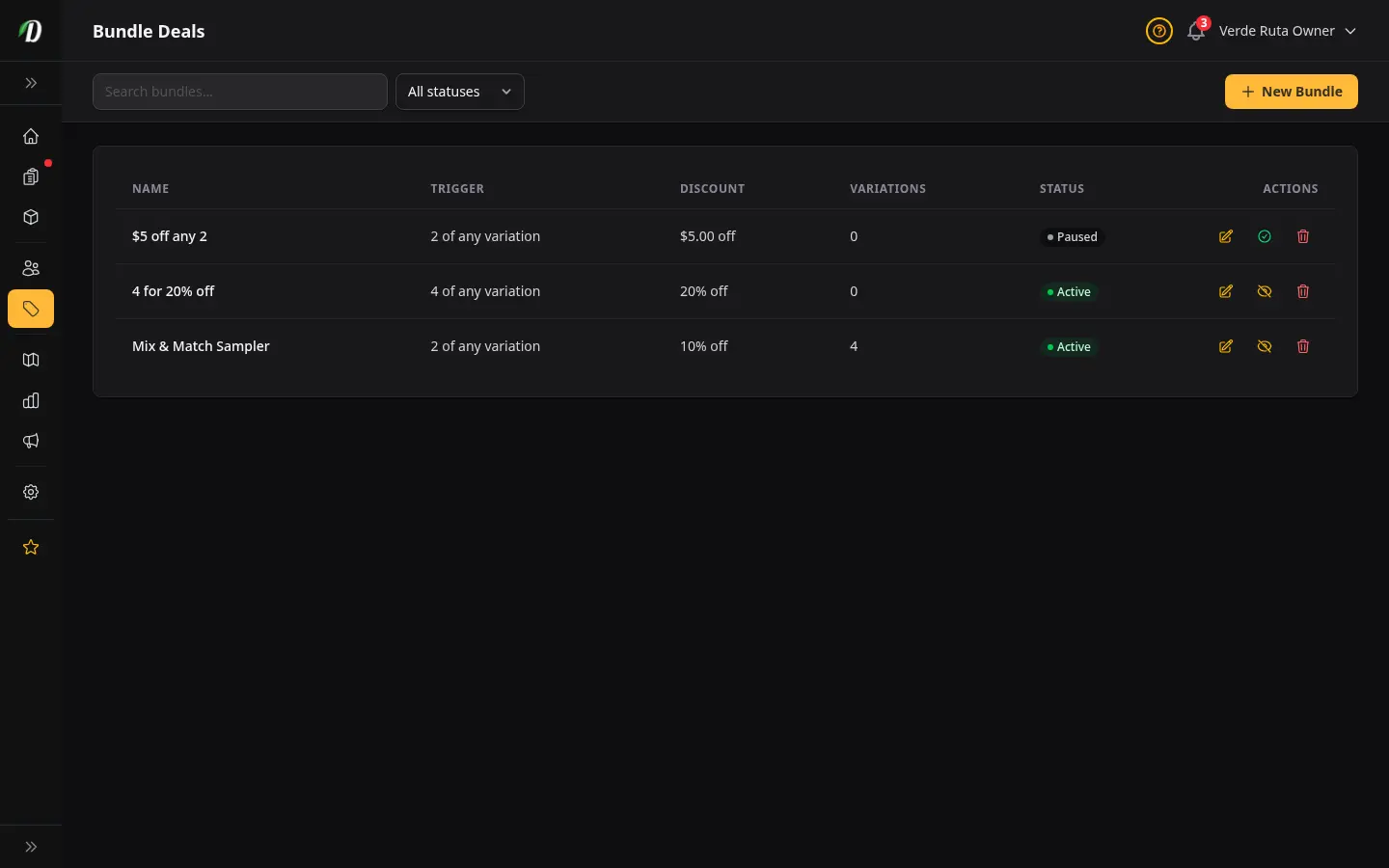
ภาพรวม
ดีลบันเดิลช่วยให้คุณตอบแทนลูกค้าที่ซื้อเยอะ — ทำงานอัตโนมัติ ไม่ต้องใช้โค้ดคูปองเลย คุณตั้งเงื่อนไขจำนวน (เช่น 4 ชิ้น) และส่วนลด: เป็นเปอร์เซ็นต์ต่อชิ้น, เป็นจำนวนเงินคงที่ต่อชิ้น หรือราคาเดียวสำหรับทั้งชุด ("4 ชิ้น $99") พอตะกร้าของลูกค้ามีสินค้าที่เข้าเงื่อนไขครบจำนวน ดีลก็จะทำงานทันทีกับทุกชิ้นที่เข้าร่วม
บันเดิลแต่ละชุดจะเจาะจงตัวเลือกสินค้าที่เข้าร่วม คุณจึงคุมได้เต็มที่ว่าสินค้าตัวไหนเข้าร่วมและตัวไหนไม่เข้าร่วม บันเดิลจะเปิดไว้ตลอดก็ได้ หรือจะหยุดชั่วคราวเมื่อไหร่ก็ได้โดยไม่เสียการตั้งค่าที่ทำไว้
การสร้างดีลบันเดิล
คลิก บันเดิลใหม่ ที่มุมขวาบนเพื่อเปิดฟอร์มสร้างบันเดิล
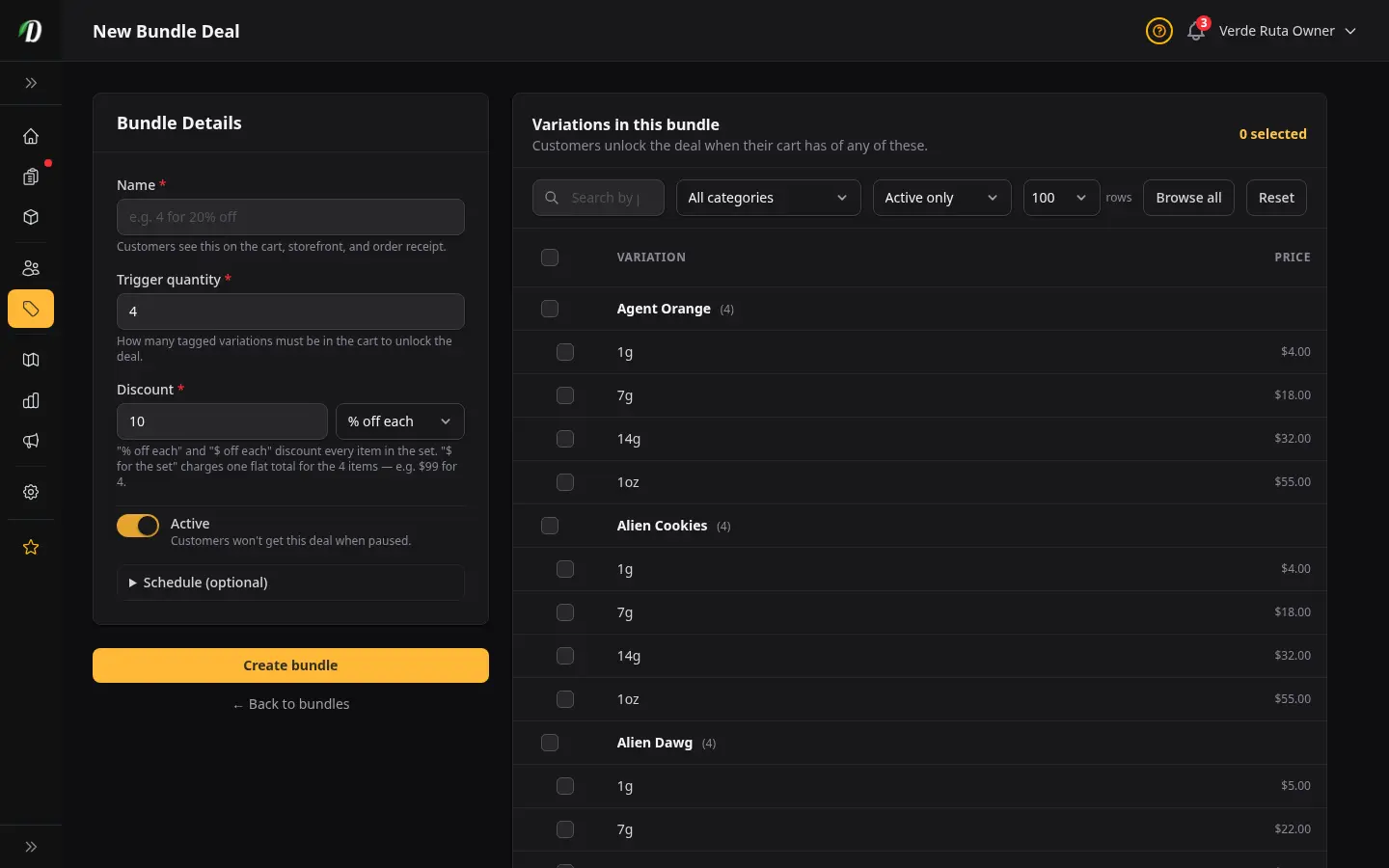
กรอกรายละเอียดของบันเดิล:
- ชื่อ
- ป้ายที่ลูกค้าจะเห็นตอนส่วนลดถูกนำไปใช้ในตะกร้า — เช่น 4 ชิ้น ลด 20% หรือ ดีลชุดชิมดอก ตั้งให้สั้นและเน้นที่ผลลัพธ์ที่ลูกค้าได้
- จำนวนที่ต้องซื้อเพื่อรับดีล
- จำนวนสินค้าที่เข้าร่วมขั้นต่ำที่ต้องมีในตะกร้าเพื่อให้ส่วนลดทำงาน ขั้นต่ำคือ 2 เช่น กรอก
4หมายความว่าลูกค้าต้องมีตัวเลือกสินค้าที่เข้าเงื่อนไข 4 ชิ้นในตะกร้า - ประเภทส่วนลด
-
เลือกวิธีคำนวณส่วนลด เมนูดรอปดาวน์มีให้เลือกสามแบบ:
- % ลดต่อชิ้น — ลดเป็นเปอร์เซ็นต์จากทุกชิ้นที่เข้าเงื่อนไข เช่น ลด 20% จากสินค้าราคา $15 ลูกค้าประหยัด $3 ต่อชิ้น
- $ ลดต่อชิ้น — ลดเป็นจำนวนเงินคงที่จากทุกชิ้นที่เข้าเงื่อนไข เช่น ลด $5 จากสินค้าราคา $20 ทำให้แต่ละชิ้นเหลือ $15
- $ สำหรับทั้งชุด — คิดราคาเดียวคงที่สำหรับทั้งชุด แทนที่จะลดทีละชิ้น เช่น $99 สำหรับ 4 ชิ้น หมายความว่าสินค้าที่เข้าเงื่อนไข 4 ชิ้นไหนก็ตามรวมเป็น $99 ไม่ว่าเดิมราคาเท่าไหร่ ใช้แบบนี้สำหรับดีล "4 ชิ้น $99" หรือ "หนึ่งออนซ์ $88"
- มูลค่าส่วนลด
-
สิ่งที่คุณกรอกตรงนี้ขึ้นอยู่กับประเภทส่วนลดที่เลือก:
- % ลดต่อชิ้น — กรอกเปอร์เซ็นต์โดยไม่ต้องใส่เครื่องหมาย % (เช่น
20สำหรับลด 20%) - $ ลดต่อชิ้น — กรอกจำนวนเงินที่ลดจากแต่ละชิ้น (เช่น
5.00) - $ สำหรับทั้งชุด — กรอกราคารวมคงที่สำหรับทั้งชุด (เช่น
99.00สำหรับ "4 ชิ้น $99") นี่คือราคาสุดท้ายที่ลูกค้าจ่ายสำหรับทั้งชุด ไม่ใช่จำนวนเงินที่ลดออก
- % ลดต่อชิ้น — กรอกเปอร์เซ็นต์โดยไม่ต้องใส่เครื่องหมาย % (เช่น
- ตัวเลือกสินค้าที่เข้าร่วม
- ใช้แผงเลือกทางด้านขวาเพื่อค้นหาในแคตตาล็อกสินค้าของคุณ แล้วติ๊กแต่ละตัวเลือกสินค้าที่ควรนับรวมเข้าจำนวนที่ต้องซื้อเพื่อรับดีลและได้รับส่วนลด คุณรวมสินค้าต่างชนิดได้ — ทุกตัวเลือกที่ติ๊กไว้นับเป็นหนึ่งชิ้นในการนับจำนวนเงื่อนไข
คลิก บันทึก เพื่อสร้างบันเดิล มันจะทำงานทันทีและเริ่มลดราคาให้ตะกร้าที่เข้าเงื่อนไข
กำลังตั้งราคาเดียวสำหรับทั้งชุดอยู่? เลือก $ สำหรับทั้งชุด เป็นประเภทส่วนลด แล้วกรอกราคารวมในช่องมูลค่าส่วนลด — เช่น 88.00 สำหรับ "หนึ่งออนซ์ (4 × 7g) $88" อย่าเลือก % ลดต่อชิ้น แล้วปล่อยมูลค่าไว้ที่ 0 — แบบนั้นจะไม่ลดราคาเลย ลูกค้าจะจ่ายเต็มราคา
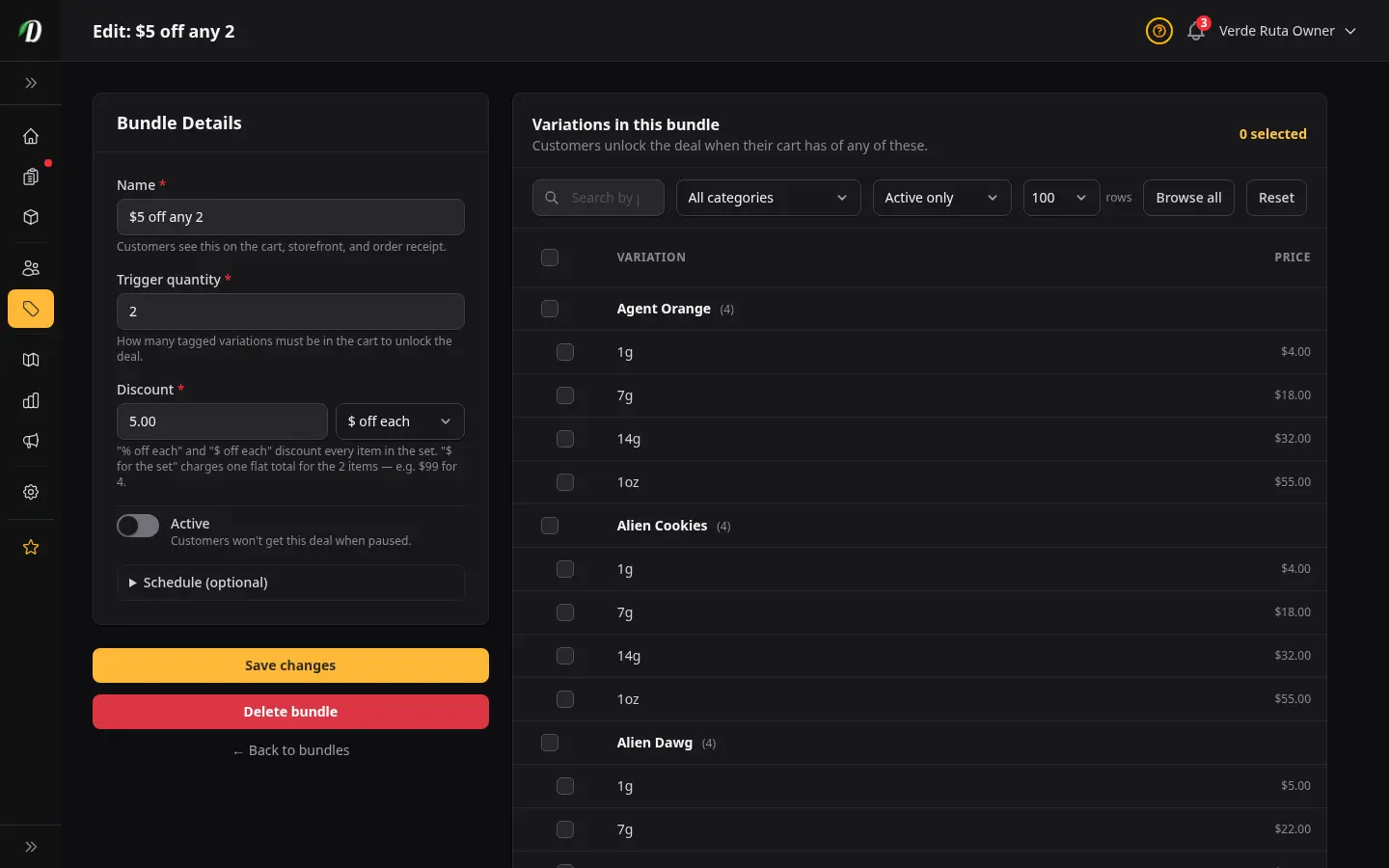
การแก้ไขบันเดิล
คลิกไอคอนดินสอในคอลัมน์การดำเนินการเพื่อเปิดบันเดิลที่หน้าแก้ไข ทุกช่องแก้ไขได้หมด รวมถึงตัวเลือกสินค้าที่เข้าร่วม คลิก บันทึกการเปลี่ยนแปลง เมื่อเสร็จ
วิธีอ่านตารางดีลบันเดิล
- ชื่อ
- ป้ายบันเดิลที่ลูกค้าเห็นในตะกร้าตอนส่วนลดถูกนำไปใช้
- ส่วนลด
- แสดงส่วนลดเป็นภาษาเข้าใจง่าย — เช่น "ลด 20% ต่อชิ้น", "ลด $5.00 ต่อชิ้น" หรือ "$99.00 สำหรับทั้งชุด"
- เงื่อนไข
- จำนวนในตะกร้าขั้นต่ำที่ต้องมีก่อนส่วนลดจะทำงาน — เช่น "4 ชิ้น"
- ตัวเลือกสินค้า
- จำนวนตัวเลือกสินค้าที่อยู่ในบันเดิลนี้ คลิกไอคอนแก้ไขเพื่อดูและปรับรายการทั้งหมด
- สถานะ
- ป้าย "ใช้งานอยู่" สีเขียว หรือ "หยุดชั่วคราว" สีเทา ใช้ไอคอนเล่น/หยุดชั่วคราวในคอลัมน์การดำเนินการเพื่อสลับสถานะโดยไม่ต้องลบบันเดิล
เคล็ดลับ
- ใช้บันเดิลระบายขนาดที่ขายช้า — ใส่ตัวเลือก 3.5g และ 7g ไว้ในบันเดิลเดียวกันเพื่อจูงใจให้ลูกค้าซื้อขนาดใหญ่ขึ้น
- หยุดบันเดิลชั่วคราวตามฤดูกาลโดยไม่เสียการตั้งค่า เปิดใช้ใหม่ตอนเทศกาล วันที่ 4/20 หรือช่วงโปรโมชันไหนก็ได้
- ใช้บันเดิลคู่กับคูปอง — บันเดิลจัดการส่วนลดตามจำนวนแบบอัตโนมัติ ส่วนคูปองดูแลข้อเสนอสำหรับลูกค้าใหม่ครั้งแรก ทั้งสองทำงานแยกกันและใช้ในตะกร้าเดียวกันได้พร้อมกัน
- เงื่อนไขนับจำนวนชิ้นที่เข้าร่วมรวมทั้งหมดจากทุกตัวเลือกที่ติ๊กไว้ ลูกค้าผสมสินค้าต่างชนิดเพื่อให้ครบเกณฑ์ได้ — เช่น สองเอทธ์ของสายพันธุ์ A และสองเอทธ์ของสายพันธุ์ B จะทำให้บันเดิล 4 ชิ้นทำงาน
- ตั้งชื่อบันเดิลให้ชัดจากมุมมองของลูกค้า — 4 เอทธ์ ลด $10 น่าซื้อกว่า Bulk Deal Q4
- สำหรับ "ดีลออนซ์" ที่ผสมหลายเอทธ์รวมเป็นราคาชุด — 4 × 7g ใดก็ได้ $88 — ใช้ประเภทส่วนลด $ สำหรับทั้งชุด แล้วกรอกราคารวม ($88) DabDash จะกระจายส่วนลดไปตามรายการต่าง ๆ ให้ยอดรวมในตะกร้าลงตัวพอดีกับราคาชุดที่คุณตั้งไว้
คำถามที่พบบ่อย
ดีลจัดเซ็ตใน DabDash ทำงานยังไง?
ดีลจัดเซ็ตจะทำงานอัตโนมัติเมื่อตะกร้าลูกค้ามีตัวเลือกที่ติดแท็กครบตามจำนวนที่กำหนด คุณตั้งจำนวนที่ทำให้ดีลทำงาน (เช่น 4 ชิ้น) และส่วนลด พอตะกร้ารวมตัวเลือกที่เข้าเงื่อนไขของเซ็ตได้ครบจำนวนนั้น ดีลจะถูกใช้อัตโนมัติ — ไม่ต้องใส่โค้ดคูปอง
ดีลจัดเซ็ตใน DabDash ใช้ส่วนลดแบบไหนได้บ้าง?
มีสามแบบ: "% off each" ลดเป็นเปอร์เซ็นต์จากทุกชิ้นที่เข้าเงื่อนไข "$ off each" ลดเป็นจำนวนเงินคงที่จากทุกชิ้น และ "$ for the set" คิดราคาเดียวสำหรับทั้งเซ็ต (เช่น "4 ชิ้น $99" หรือ "หนึ่งออนซ์ $88") โดยกระจายส่วนลดไปตามรายการ ให้ยอดรวมตะกร้าลงตัวพอดีที่ราคาเซ็ตของคุณ
ตั้งราคาเดียวแบบ "4 ชิ้น $99" หรือ "ออนซ์ละ $88" ใน DabDash ยังไง?
สร้างเซ็ต ตั้งจำนวนที่ทำให้ดีลทำงาน (เช่น 4) เลือกแบบส่วนลด "$ for the set" แล้วใส่ราคารวมในช่อง มูลค่าส่วนลด (เช่น 99.00 หรือ 88.00) ติ๊กตัวเลือกที่เข้าเงื่อนไขแล้วบันทึก อย่าใช้ "% off each" ที่ค่า 0 — แบบนั้นไม่ลดอะไรเลย ลูกค้าจะจ่ายราคาเต็ม
สร้างดีลจัดเซ็ตใน DabDash ยังไง?
ไปที่ ดีลจัดเซ็ต กด เซ็ตใหม่ ใส่ชื่อที่ลูกค้าจะเห็น ตั้งจำนวนที่ทำให้ดีลทำงาน (อย่างน้อย 2) เลือกแบบส่วนลด (% off each, $ off each หรือ $ for the set) และค่า แล้วติ๊กตัวเลือกสินค้าที่เข้าเงื่อนไข บันทึกเพื่อเปิดใช้ — ลูกค้าจะเห็นส่วนลดถูกใช้อัตโนมัติพอตะกร้าถึงเกณฑ์
พักดีลจัดเซ็ตโดยไม่ลบใน DabDash ได้ไหม?
ได้ — ใช้ไอคอนเล่น/พักในคอลัมน์ การกระทำ ที่หน้า ดีลจัดเซ็ต เซ็ตที่พักไว้จะมองไม่เห็นสำหรับลูกค้าแต่ยังถูกเก็บในแดชบอร์ดของคุณ พร้อมเปิดใช้ใหม่ในฤดูโปรโมชั่นถัดไป