แคมเปญอีเมล
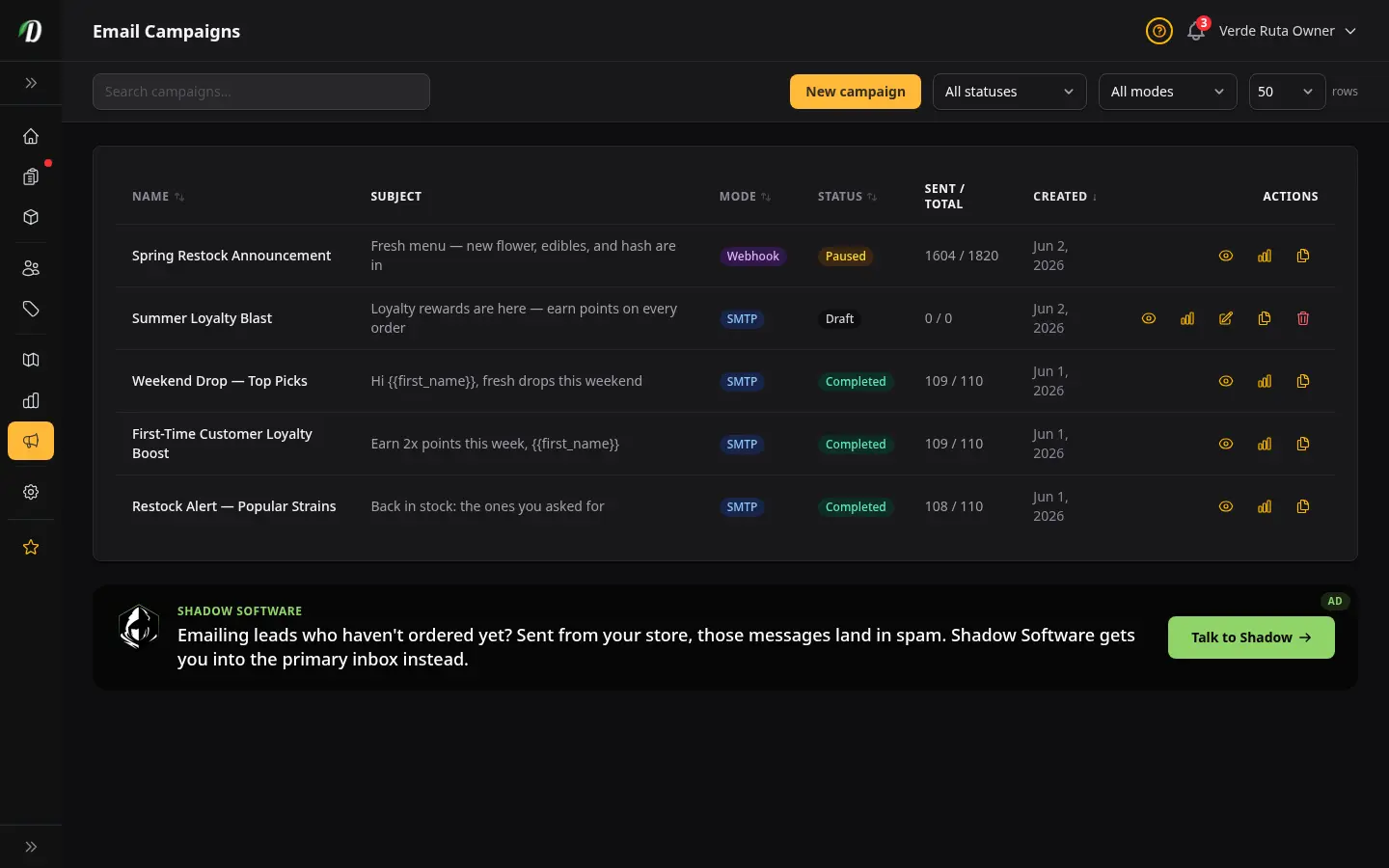
ส่งแคมเปญอีเมลถึงลูกค้าและรายชื่อผู้สนใจ ดูจำนวนผู้รับแบบสด ๆ ก่อนส่ง พร้อมติดตามยอดส่ง ข้อผิดพลาด และการหยุดพักแบบเรียลไทม์
เริ่มต้นอย่างรวดเร็ว
- เปิด การตลาด → แคมเปญอีเมล
- สร้างหรือนำเข้ารายชื่อผู้ติดต่อใน รายชื่อ
- คลิก แคมเปญใหม่ เลือกโหมด (SMTP หรือ Webhook) เขียนอีเมล แล้วเลือกรายชื่อของคุณ
- กด ส่งเลย หน้าจะพาไปยังหน้าสถิติแคมเปญ ที่คุณดูความคืบหน้าแบบเรียลไทม์ได้
ลูกค้า กับ ลีด
ผู้รับของคุณแบ่งเป็นสองกลุ่ม การแบ่งนี้สำคัญ เพราะแต่ละกลุ่มต้องใช้วิธีรับอีเมลที่ต่างกัน
- ลูกค้า คือคนที่เคยซื้อจากคุณ — รวมถึงชำระเงินแบบแขก (อีเมลบนออเดอร์ โดยไม่มีบัญชีในร้าน) คุณส่งอีเมลถึงพวกเขาผ่านเซิร์ฟเวอร์ SMTP ของคุณเองได้
- ลีด คือคนที่คุณเก็บรายชื่อไว้แต่ยังไม่ได้ซื้อ ลีดต้องส่งผ่าน webhook ไปยังผู้ให้บริการภายนอกที่ดูแลชื่อเสียงการส่งให้คุณ
รวมลูกค้าทั้งหมดของฉันด้วย
ในฟอร์มแคมเปญ เปิด รวมลูกค้าทั้งหมดของฉันด้วย เพื่อเพิ่มทั้งลูกค้าที่สมัครบัญชี และ ผู้ซื้อแบบแขกเข้าในรายชื่อ ผู้ซื้อแบบแขกคือคนที่ชำระเงินโดยไม่สร้างบัญชี — เราใช้อีเมลจากออเดอร์ของเขา
ตัวอย่างผู้รับจะแสดงว่ามีกี่คนที่เป็นลูกค้าที่สมัคร กี่คนเป็นผู้ซื้อแบบแขก และกี่คนถูกข้ามเพราะยกเลิกการรับอีเมล ที่อยู่อีเมลที่ยกเลิกแล้วจะไม่ถูกส่ง
ต้องการอีเมลทีละคนแทนการส่งกลุ่ม? ค้นหาคนนั้นในกล่องข้อความ — ผู้ซื้อแบบแขกจะปรากฏภายใต้ เริ่มอีเมลใหม่ พร้อมป้าย ผู้ซื้อแบบแขก
โหมด SMTP — สำหรับลูกค้าของคุณ
โหมด SMTP ใช้บัญชีอีเมลของร้านคุณในการส่ง ตั้งค่า SMTP ก่อนที่ ตั้งค่า → โดเมน & อีเมล SMTP ใช้กับลูกค้าเท่านั้น เพราะลูกค้าเชื่อถืออีเมลที่มาจากที่อยู่ของคุณเอง
โหมด Webhook — สำหรับลีด
โหมด Webhook จะส่งผู้รับแต่ละคนต่อให้ผู้ให้บริการอีเมลภายนอกของคุณ คุณตั้ง URL ในแต่ละแคมเปญ — เลือก Webhook เป็นโหมดการส่งแล้วกรอก URL ของ endpoint คุณ แต่ละแคมเปญใช้ webhook ต่างกันได้ ลีดควรส่งผ่านผู้ให้บริการ webhook เสมอ เพื่อให้การตีกลับและการร้องเรียนไม่ไปทำลายชื่อเสียงของร้านคุณ
กุญแจลงลายเซ็น
เราสร้าง กุญแจลงลายเซ็น ให้ในครั้งแรกที่คุณบันทึกแคมเปญ webhook เพื่อให้ endpoint ของคุณยืนยันได้ว่าแต่ละคำขอมาจากเราจริง ๆ ใช้ เปิดเผย เพื่อแสดง คัดลอก เพื่อวางลงในผู้ให้บริการของคุณ และ สร้างใหม่ ถ้ากุญแจถูกเปิดเผยออกไป — การสร้างใหม่จะทำให้กุญแจเก่าหยุดทำงานทันที ฉะนั้นให้อัปเดต endpoint ของคุณไปพร้อมกัน
เมื่อไหร่ควรใช้ SMTP หรือ Webhook
| ถ้าคุณกำลังส่งอีเมลถึง | ใช้โหมดนี้ |
|---|---|
| คนที่เคยซื้อจากคุณ | SMTP |
| คนที่ยังไม่ได้ซื้อ | Webhook |
| ผสมทั้งสองกลุ่ม | Webhook (ปลอดภัยกว่าสำหรับชื่อเสียง) |
การอัปโหลดรายชื่อแรกของคุณ
เปิด รายชื่อ คลิก รายชื่อใหม่ แล้วอัปโหลดไฟล์ CSV ที่มีหนึ่งอีเมลต่อหนึ่งแถว คอลัมน์แรกควรเป็นอีเมล โดยมีคอลัมน์ชื่อจริงและนามสกุลแบบเลือกได้ เราตัดรายชื่อซ้ำให้ตอนนำเข้า
การเขียนแคมเปญ
คลิก แคมเปญใหม่ ตั้งชื่อ เขียนหัวเรื่อง แล้วเขียนเนื้อหา คุณลากแล้ววางรูปลงในตัวแก้ไขได้เลย — เราอัปโหลดและโฮสต์ให้อัตโนมัติ ใช้ปุ่ม ส่งทดสอบ ก่อนส่งจริง เพื่อดูว่าอีเมลของคุณหน้าตาเป็นยังไงในกล่องจดหมายของคุณเอง
ภาพใบปลิวสำหรับแคมเปญ
ขอให้ Dabby สร้างภาพใบปลิว แล้วมันจะสร้างจากภาพสินค้าจริงของคุณ ในโทนสีของร้าน แล้ววางลงในช่องรูปของแคมเปญให้
สิ่งนี้ต้องเชื่อมต่อคีย์ภาพของคุณเองที่ ตั้งค่า → Dab AI ค่าใช้จ่ายแต่ละภาพจะเรียกเก็บจากคีย์นั้น ไม่ใช่ของเรา
ตัวภาพเองจะไม่มีตัวอักษร ทุกพาดหัว ราคา และปุ่มยังคงเป็นข้อความจริงในอีเมล อ่านง่าย แปลตามแคมเปญ และยังเข้าใจได้แม้ปิดการแสดงภาพ
อยากให้เหมือนใบปลิวที่คุณส่งอยู่แล้วใช่ไหม? เก็บใบปลิวเก่าไว้ในคลังสื่อของคุณ แล้วบอกให้ Dabby บันทึกเป็นสไตล์ใบปลิวของคุณ งานออกแบบหลังจากนั้นจะตามอารมณ์และองค์ประกอบนั้น แต่ไม่เอาข้อความหรือโลโก้
คะแนนกล่องจดหมาย
ขณะที่คุณเขียนหัวเรื่องและเนื้อหา การ์ด คะแนนกล่องจดหมาย จะอัปเดตแบบเรียลไทม์ข้างตัวแก้ไข มันตรวจสิ่งที่ทำให้ผู้ให้บริการอีเมลตีว่าเป็นสแปม — หัวเรื่องตัวพิมพ์ใหญ่ทั้งหมด คำที่ดูน่าสงสัย ขาดการปรับให้เป็นส่วนตัว ลิงก์เยอะเกินไป และอื่นๆ — แล้วให้คะแนนร่างของคุณตั้งแต่ 0 ถึง 100
คะแนนของคุณต้อง 80 ขึ้นไป ก่อนจึงจะส่งหรือตั้งเวลาได้ แคมเปญที่คะแนนต่ำกว่า 80 บันทึกเป็นฉบับร่างได้ตามปกติ แต่ปุ่มส่งและตั้งเวลาจะถูกล็อกไว้จนกว่าคะแนนจะขึ้น ใต้คะแนนมีคำแนะนำบอกว่าต้องแก้อะไรบ้าง — แก้ตามนั้นแล้วตัวเลขจะขึ้นขณะที่คุณพิมพ์
คะแนนแบบเรียลไทม์เป็นการตรวจสอบอย่างเร็ว ตอนส่งจริงเราจะรันการตรวจสแปมที่ละเอียดกว่าอีกครั้ง ดังนั้นแคมเปญที่ดูพร้อมแล้วอาจยังต้องปรับนิดหน่อย — ข้อความแจ้งเตือนตอนกดส่งจะบอกชัดเจนว่าต้องแก้อะไร
อธิบายขีดจำกัดการส่ง
ขีดจำกัดอีเมลช่วยปกป้องชื่อเสียงการส่งของคุณ การส่งเร็วเกินไปจะดูเหมือนสแปมในสายตาผู้ให้บริการอีเมล
- SMTP ตั้งค่าเริ่มต้นที่ 1 ฉบับต่อนาที และ 30 ฉบับต่อชั่วโมง
- ค่าเริ่มต้นของ Webhook สูงกว่า เพราะผู้ให้บริการของคุณจัดการจังหวะการส่งให้
- คุณลดขีดจำกัดได้ แต่เพิ่มเกินเพดานที่ปลอดภัยไม่ได้
การยกเลิกการรับ & การปฏิบัติตามกฎ
ทุกอีเมลที่เราส่งมีลิงก์ยกเลิกการรับแบบคลิกเดียว เราลบที่อยู่นั้นออกจากแคมเปญในอนาคตให้อัตโนมัติ — คุณไม่ต้องทำอะไรเลย สิ่งนี้ช่วยให้คุณทำตามกฎหมายต่อต้านสแปม
การอ่านบันทึกการส่งของคุณ
เปิดแคมเปญใดก็ได้แล้วคลิกแท็บ บันทึกการส่ง มีแค่ข้อผิดพลาดเท่านั้นที่ถูกบันทึก — การส่งที่สำเร็จจะไม่ถูกบันทึก แต่ละแถวแสดงผู้รับ ประเภทข้อผิดพลาด ข้อความรายละเอียดสั้น ๆ และสถานะ HTTP (สำหรับข้อผิดพลาด webhook) คลิก ดาวน์โหลด CSV เพื่อส่งออกทั้งหมด
ทำไมแคมเปญถึงหยุดเอง
ถ้าคุณใส่ URL ตรวจสุขภาพ (สำหรับ n8n มักเป็น /webhook/health) เราจะหยุดหลังข้อผิดพลาดการส่ง หนึ่ง ครั้ง แล้วตรวจหน้าสุขภาพนั้นตามจังหวะเดียวกับการส่ง เมื่อกลับมา OK เราจะเริ่มต่อเองและลองที่อยู่ที่ล้มเหลวอีกครั้ง คุณจะเห็นแบนเนอร์ “กำลังรอ” ขณะที่เราตรวจ
ถ้าคุณไม่ได้ใส่ URL ตรวจสุขภาพ เรายังหยุดหลังข้อผิดพลาด สาม ครั้งติดกัน คุณต้องแก้ endpoint แล้วคลิก เริ่มต่อ เอง
การเริ่มแคมเปญที่ถูกหยุดต่อ
ถ้ามี URL ตรวจสุขภาพ โดยปกติคุณไม่ต้องทำอะไร — เราจะเริ่มต่อเมื่อหน้าสุขภาพ OK คุณยังคลิก เริ่มต่อทันที ได้ถ้าไม่อยากรอ ถ้าไม่มี URL ตรวจสุขภาพ ให้แก้ endpoint ก่อน (ใช้ ทดสอบ webhook) แล้วคลิก เริ่มต่อ การส่งจะดำเนินต่อจากจุดที่ค้างไว้
การแก้ปัญหาการส่งถึงปลายทาง
- ถ้าอีเมลของคุณตกไปอยู่ในสแปม ให้ส่งไปยังกลุ่มที่เล็กกว่าและมีส่วนร่วมมากกว่าก่อน เพื่ออุ่นเครื่องชื่อเสียงการส่งของคุณ
- ทำหัวเรื่องให้เจาะจงและเลี่ยงคำที่ดูเหมือนสแปม
- ถ้าอัตราการตีกลับสูง ให้ทำความสะอาดรายชื่อของคุณ — ลบที่อยู่ที่ตีกลับออกและอย่าส่งอีเมลถึงพวกนั้นอีก
- สำหรับลีด ให้ใช้โหมด webhook เสมอ เพื่อไม่ให้โดเมนของร้านคุณถูกใช้ส่งหาคนแปลกหน้า
คำถามที่พบบ่อย
ส่งแคมเปญอีเมลใน DabDash ยังไง?
ไปที่ การตลาด → แคมเปญอีเมล กด แคมเปญใหม่ เลือกโหมด SMTP หรือ Webhook เขียนหัวข้อและเนื้อหา เลือกลิสต์ผู้ติดต่อและว่าจะรวมลูกค้าด้วยไหม แล้วกด ส่งเลย แคมเปญจะเริ่มทันทีและคุณดูความคืบหน้าได้ที่หน้าสถิติ
ตัวอย่างผู้รับในแคมเปญอีเมลของ DabDash ทำงานยังไง?
แผง "ใครจะได้รับอันนี้" ใต้ฟอร์มแคมเปญจะอัปเดตแบบเรียลไทม์ตามการเลือกผู้รับของคุณ มันโชว์จำนวนผู้รับที่เข้าเกณฑ์แน่นอน กี่คนเป็นลูกค้าเทียบกับลีด และกี่ที่อยู่จะถูกข้ามเพราะไม่ผ่านการตรวจสอบอีเมล จำนวนจะปรับทันทีเมื่อคุณติ๊กหรือเอาติ๊กออกลิสต์ผู้ติดต่อ หรือตัวเลือก "รวมลูกค้า"
ทำไมบางที่อยู่ถูกข้ามในผู้รับแคมเปญ DabDash ของฉัน?
ที่อยู่ที่ถูกปักธงว่าเสี่ยงหรือไม่ถูกต้องโดยการตรวจสอบอีเมลจะถูกตัดออกก่อนส่ง ตัวอย่างผู้รับจะโชว์ว่ามีกี่ที่อยู่ที่จะถูกข้ามด้วยข้อความสีเหลือง นี่ช่วยปกป้องชื่อเสียงในการส่งของคุณ โดยเลี่ยงที่อยู่ที่มีโอกาสตีกลับ
ควรใช้ SMTP หรือ Webhook สำหรับแคมเปญอีเมลใน DabDash ตอนไหน?
ใช้ SMTP เพื่อส่งอีเมลถึงคนที่เคยซื้อจากคุณแล้ว — ลูกค้าของคุณเอง ใช้ Webhook เพื่อส่งถึงลีด (คนที่ยังไม่เคยซื้อ) โดยส่งผ่านผู้ให้บริการภายนอก การส่งหาคนแปลกหน้าผ่าน SMTP ของคุณเองเสี่ยงทำให้ชื่อเสียงการส่งเสียได้
ทำไมแคมเปญอีเมล DabDash ของฉันพักเองอัตโนมัติ?
ถ้าปลายทาง webhook ตอบกลับด้วยข้อผิดพลาดสามครั้งติดต่อกัน DabDash จะพักแคมเปญเพื่อปกป้องชื่อเสียงการส่งของคุณ แก้ปลายทางแล้วกด ทำต่อ การส่งจะเริ่มต่อจากตรงที่ค้างไว้พอดี