กล่องข้อความลูกค้า
จัดการบทสนทนาแชทสดและข้อความช่วยเหลือลูกค้า
ภาพรวม
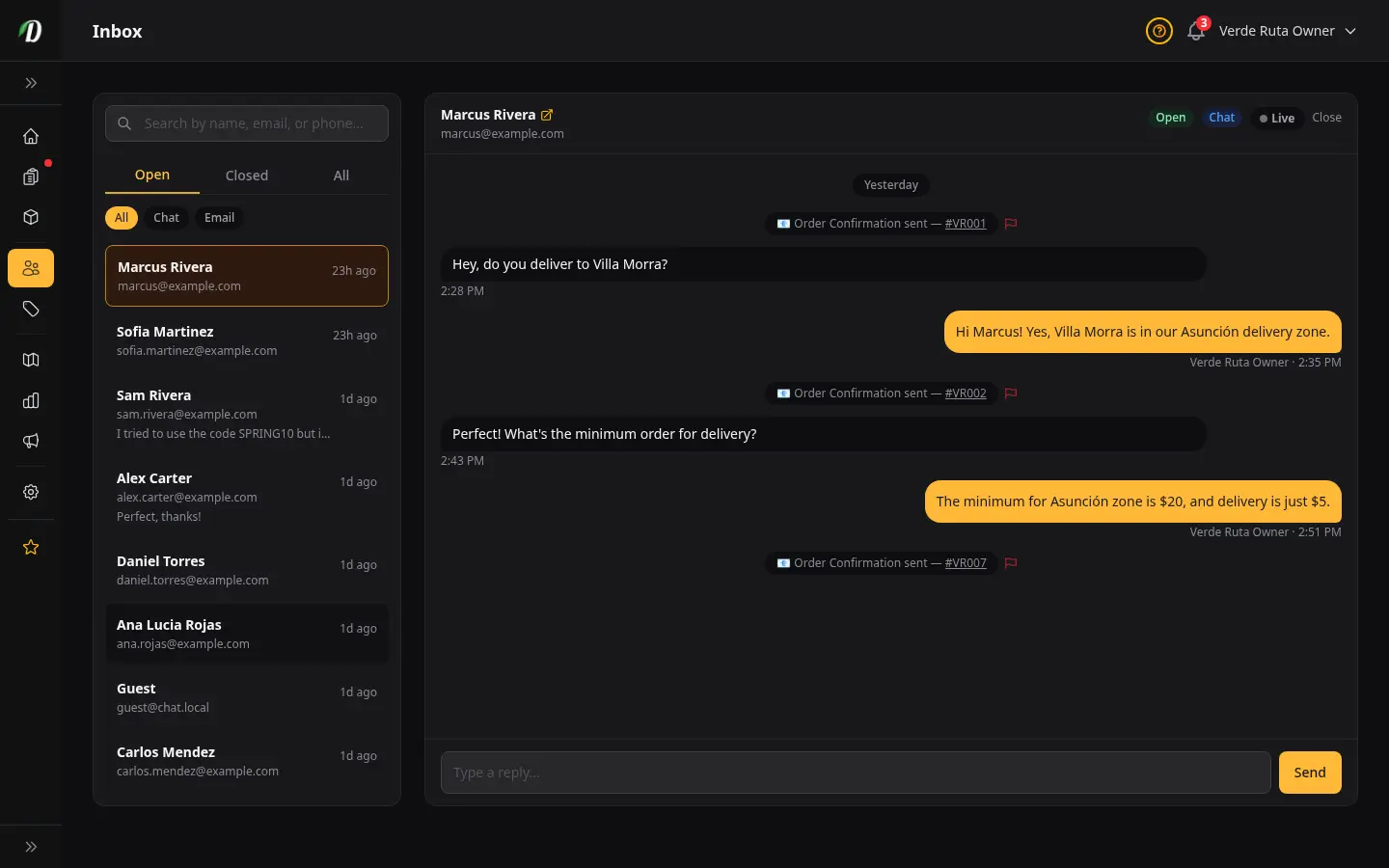
กล่องข้อความคือที่ที่ลูกค้าทักหาคุณผ่านแชตสด ทุกบทสนทนาจะถูกเก็บไว้ที่นี่ ทีมงานของคุณจะได้ตอบกลับ ย้อนดูข้อความเก่า และเก็บประวัติการคุยไว้ครบทั้งหมด
ข้อความใหม่จะโผล่ขึ้นมาในรายการแชตทางซ้าย จุดสีน้ำเงินบอกว่ายังไม่ได้อ่านจะบอกว่าบทสนทนาไหนรอให้คุณดูอยู่ แตะที่บทสนทนาไหนก็ได้เพื่อเปิดดูทั้งหมดทางขวา
หน้าตาของหน้านี้
- รายการแชต (แผงซ้าย)
- แสดงทุกบทสนทนา เรียงใหม่สุดขึ้นก่อน แต่ละรายการจะบอกชื่อหรืออีเมลลูกค้า ตัวอย่างข้อความล่าสุด และเวลา บทสนทนาที่ยังไม่ได้อ่านจะถูกไฮไลต์ไว้ — แตะอันไหนก็ได้เพื่อเปิด
- บทสนทนาที่กำลังคุย (แผงขวา)
- แสดงข้อความทั้งสายการคุย ข้อความของคุณจะอยู่ทางขวา ข้อความลูกค้าจะอยู่ทางซ้าย พิมพ์คำตอบในช่องด้านล่างแล้วกด ส่ง หรือกด Enter
- ตัวกรอง (เหนือรายการ)
- มีตัวกรองสองชุดที่ช่วยกรองรายการแชต: แท็บสถานะ — เปิดอยู่, ปิดแล้ว, ทั้งหมด — และปุ่มช่องทาง — แชต กับ อีเมล ใช้มันเพื่อโฟกัส เช่น ดูเฉพาะอีเมลที่ยังเปิดอยู่ ค่าเริ่มต้นคือ "เปิดอยู่" คุณจะได้เห็นอันที่ยังต้องตอบ
อ่านอีเมล HTML
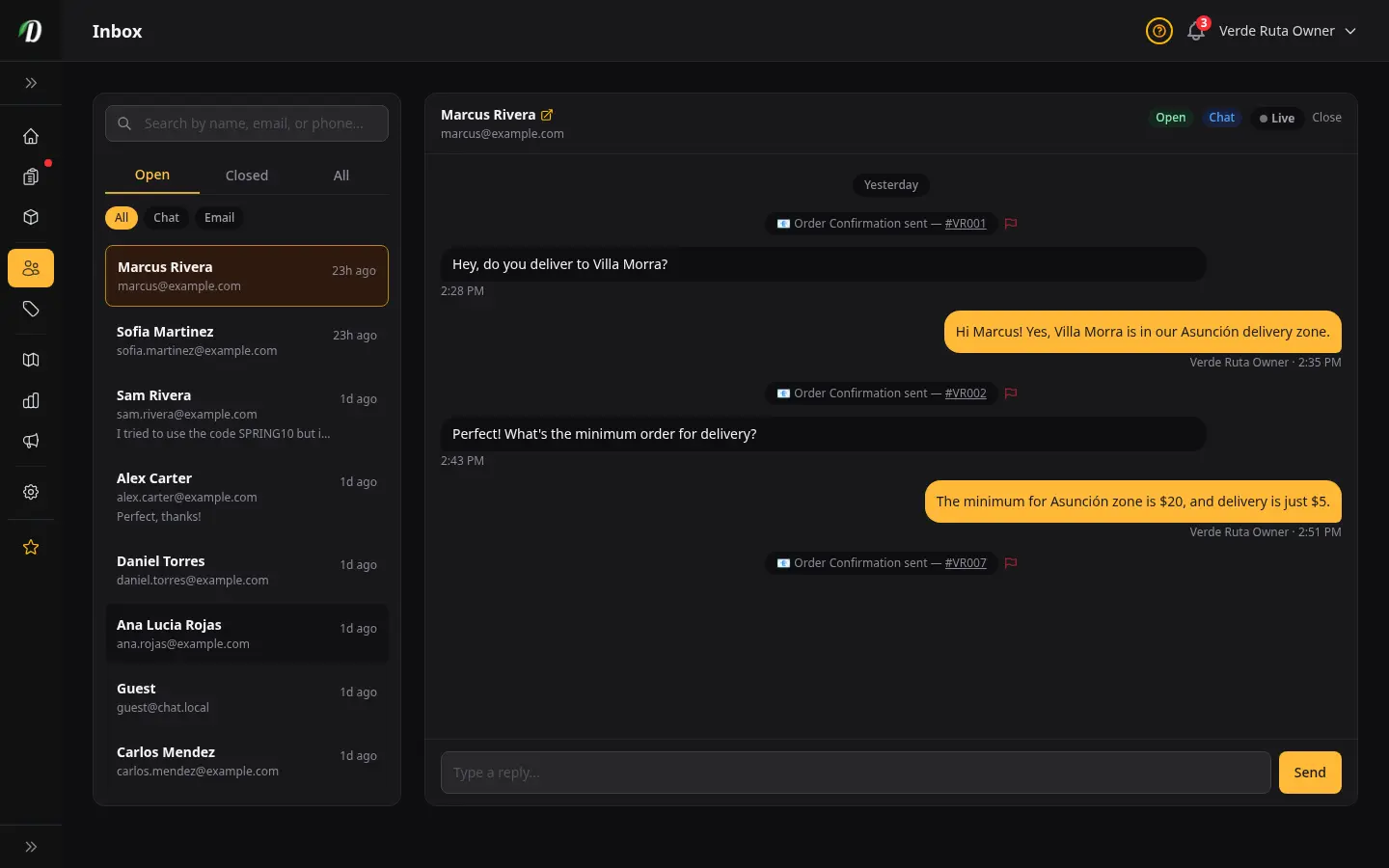
อีเมลที่เป็น HTML (จดหมายข่าว คำตอบที่มีสไตล์ ใบเสร็จ) จะแสดงตัวอย่างแบบปลอดภัยในเธรด ส่วนหัวเก็บ จาก และ ถึง ทางซ้าย พร้อมปุ่ม เปิด และ พิมพ์ ทางขวา เพื่อไม่เสียพื้นที่แนวตั้ง
เปิด จะขยายอีเมลเต็มจอให้อ่านง่ายขึ้น พิมพ์ ส่งไปที่เครื่องพิมพ์ สคริปต์และเนื้อหาที่ไม่ปลอดภัยถูกบล็อกไว้
ไม่ต้องการโหลดรูปจากภายนอก? ปิด แสดงรูปในอีเมล ที่ การตั้งค่า → โดเมนและอีเมล → การแสดงกล่องข้อความ
เริ่มอีเมลใหม่
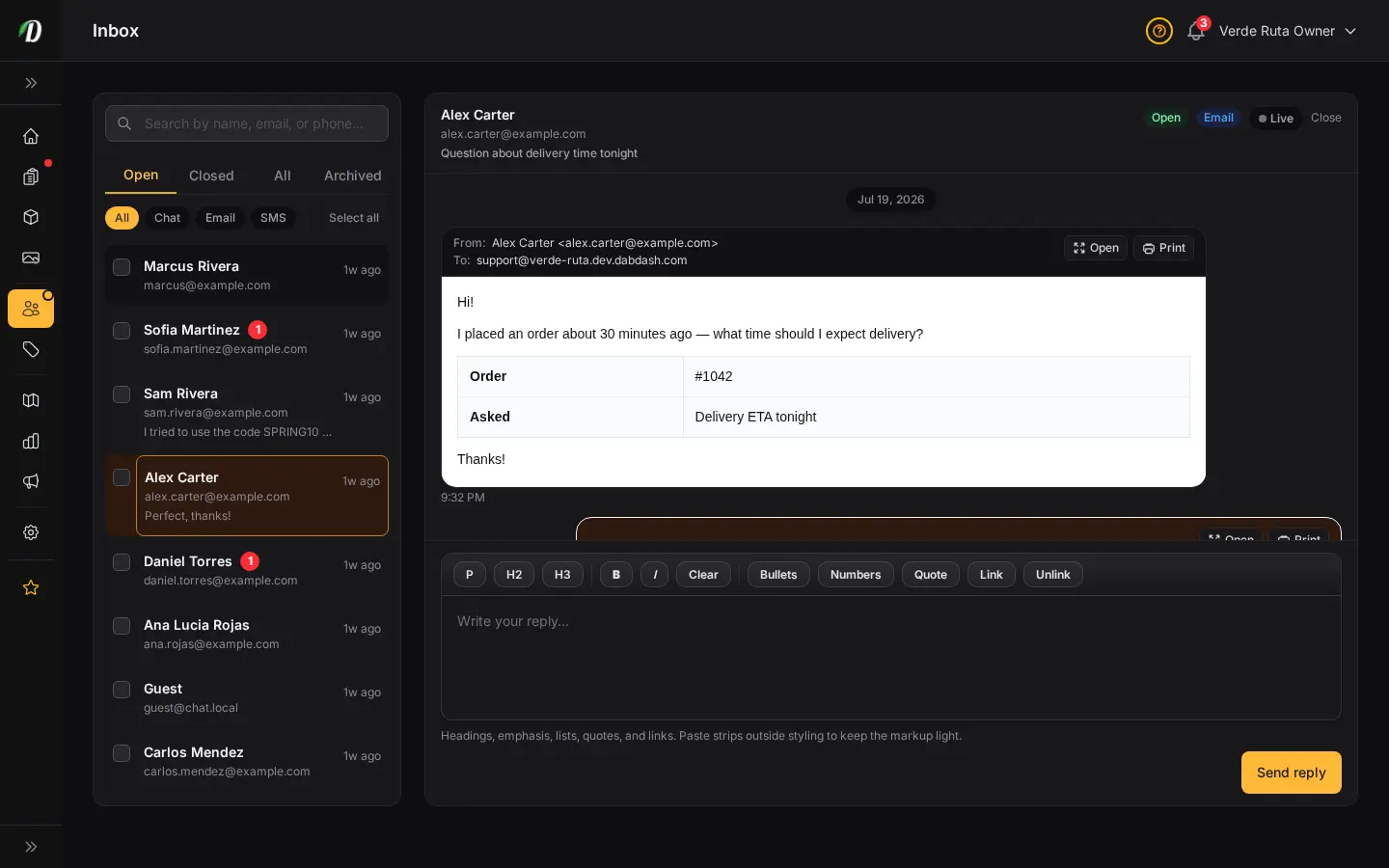
คุณไม่ต้องรอให้ลูกค้าทักมาก่อน เริ่มสายอีเมลใหม่ถึงลูกค้าหรือผู้ติดต่อคนไหนก็ได้ตรงจากกล่องข้อความเลย
พิมพ์ชื่อ อีเมล หรือเบอร์โทรในช่องค้นหา นอกจากบทสนทนาที่ตรงกันแล้ว จะมีส่วน เริ่มอีเมลใหม่ ที่แสดงคนที่ยังไม่เคยมีบทสนทนา — ลูกค้าที่สมัครบัญชี ผู้ติดต่อ และผู้ซื้อแบบแขก (อีเมลบนออเดอร์ โดยไม่มีบัญชีในร้าน) ผู้ซื้อแบบแขกจะมีป้าย ผู้ซื้อแบบแขก เลือกคนไหนก็ได้เพื่อเปิดอีเมลเปล่าที่จ่าหน้าถึงเขา
กำลังหาคนที่ยังไม่อยู่ในระบบใช่ไหม? พิมพ์อีเมลเต็มของเขาแล้วเลือก อีเมลถึง <ที่อยู่> เพื่อเริ่มสายคุยกับใครก็ได้
- หัวข้อ
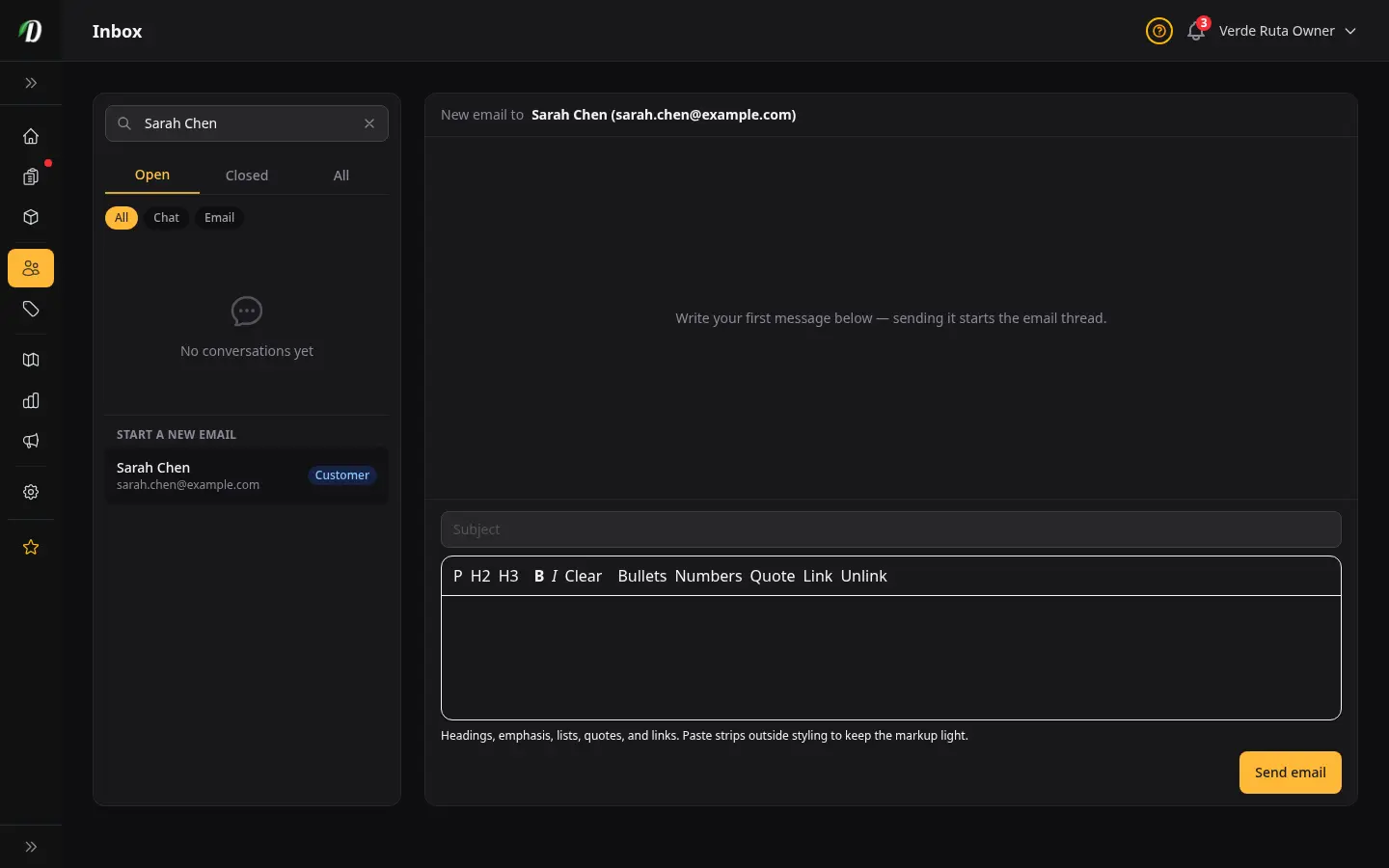
- บรรทัดหัวข้อที่ลูกค้าจะเห็น ต้องใส่ทุกครั้งสำหรับสายคุยใหม่
- ข้อความ
- เขียนข้อความได้พร้อมแถบจัดรูปแบบ — หัวข้อ ตัวหนา รายการ คำพูดอ้างอิง และลิงก์ พอส่งข้อความแรกออกไป ระบบจะสร้างบทสนทนาและส่งอีเมลให้เลย
เคล็ดลับ: การส่งอีเมลต้องเชื่อมต่อกล่องอีเมลไว้ในหน้าตั้งค่าก่อน ถ้ายังไม่ได้ตั้งค่า ระบบจะให้คุณเพิ่มกล่องอีเมลก่อนจะส่งอีเมลฉบับแรกออกไปได้
ใช้กล่องข้อความบนมือถือ
บนจอเล็ก กล่องข้อความจะสลับเป็นแบบแผงเดียว รายการแชตจะเต็มจอตอนแรก แตะบทสนทนาไหนก็ได้เพื่อเปิด — รายการจะเลื่อนหายไปและสายการคุยจะขึ้นมาแทน แตะลูกศรย้อนกลับมุมซ้ายบนเพื่อกลับไปที่รายการ
เคล็ดลับ
- พยายามตอบภายในไม่กี่ชั่วโมง การตอบเร็วเปลี่ยนคนที่แค่ดูๆ ให้กลายเป็นคนซื้อ — โดยเฉพาะตอนที่เขาถามเรื่องของมีไหมหรือเวลาส่ง
- เช็กกล่องข้อความก่อนหมดวันทุกวัน ป้ายสีน้ำเงินที่ยังไม่ได้อ่านในแถบข้างคือตัวเตือนของคุณ
- ถ้าลูกค้าถามเรื่องออเดอร์ใดออเดอร์หนึ่ง ก็อปเลขออเดอร์จากหน้าออเดอร์ใส่ในคำตอบ ทั้งสองฝ่ายจะได้มีเลขอ้างอิงชัดเจน
คำถามที่พบบ่อย
ตอบข้อความลูกค้าใน DabDash ยังไง?
เปิด กล่องข้อความ จากแถบข้าง บทสนทนาที่ยังไม่อ่านจะถูกไฮไลต์ กดที่บทสนทนาเพื่อดูข้อความทั้งหมด พิมพ์คำตอบในช่องข้อความด้านล่าง แล้วกด Enter หรือกด ส่ง บนมือถือ บทสนทนาจะเปิดเต็มจอพร้อมปุ่มย้อนกลับไปยังลิสต์บทสนทนา
รู้ได้ยังไงว่าลูกค้าส่งข้อความมาใน DabDash?
ลิงก์ กล่องข้อความ ในแถบข้างจะโชว์ป้ายนับข้อความที่ยังไม่อ่านทุกครั้งที่มีข้อความใหม่เข้ามา เปิดการแจ้งเตือนของเบราว์เซอร์ในการตั้งค่าเบราว์เซอร์เพื่อรับแจ้งแบบเรียลไทม์ และตั้งอีเมลแจ้งเตือนข้อความแชทใหม่ได้ใน ตั้งค่า → การแจ้งเตือน
เริ่มส่งอีเมลใหม่ถึงลูกค้าใน DabDash ยังไง?
ใน กล่องข้อความ พิมพ์ชื่อ อีเมล หรือเบอร์โทรในช่องค้นหา ใต้ "เริ่มอีเมลใหม่" เลือกลูกค้าหรือผู้ติดต่อที่ต้องการ — จะเปิดอีเมลเปล่าที่จ่าหน้าถึงเขา ใส่หัวข้อ เขียนข้อความ แล้วกด ส่งอีเมล เพื่อเริ่มบทสนทนา ถ้าจะส่งถึงคนที่ยังไม่เป็นลูกค้า ให้พิมพ์อีเมลเต็มของเขาแล้วเลือก "ส่งอีเมลถึง <ที่อยู่>" การส่งต้องมีกล่องเมลที่เชื่อมต่อไว้ใน ตั้งค่า
เปิดหรือพิมพ์อีเมล HTML ในกล่องข้อความ DabDash ยังไง?
อีเมล HTML จะแสดงตัวอย่างแบบปลอดภัยในเธรด ปุ่มเปิดและพิมพ์อยู่ทางขวาของส่วนหัว จาก/ถึง กด เปิด เพื่อดูเต็มจอ หรือ กด พิมพ์ เพื่อส่งไปเครื่องพิมพ์ ถ้าไม่ต้องการโหลดรูปจากภายนอก ให้ปิด แสดงรูปในอีเมล ที่ การตั้งค่า → โดเมนและอีเมล → การแสดงกล่องข้อความ